
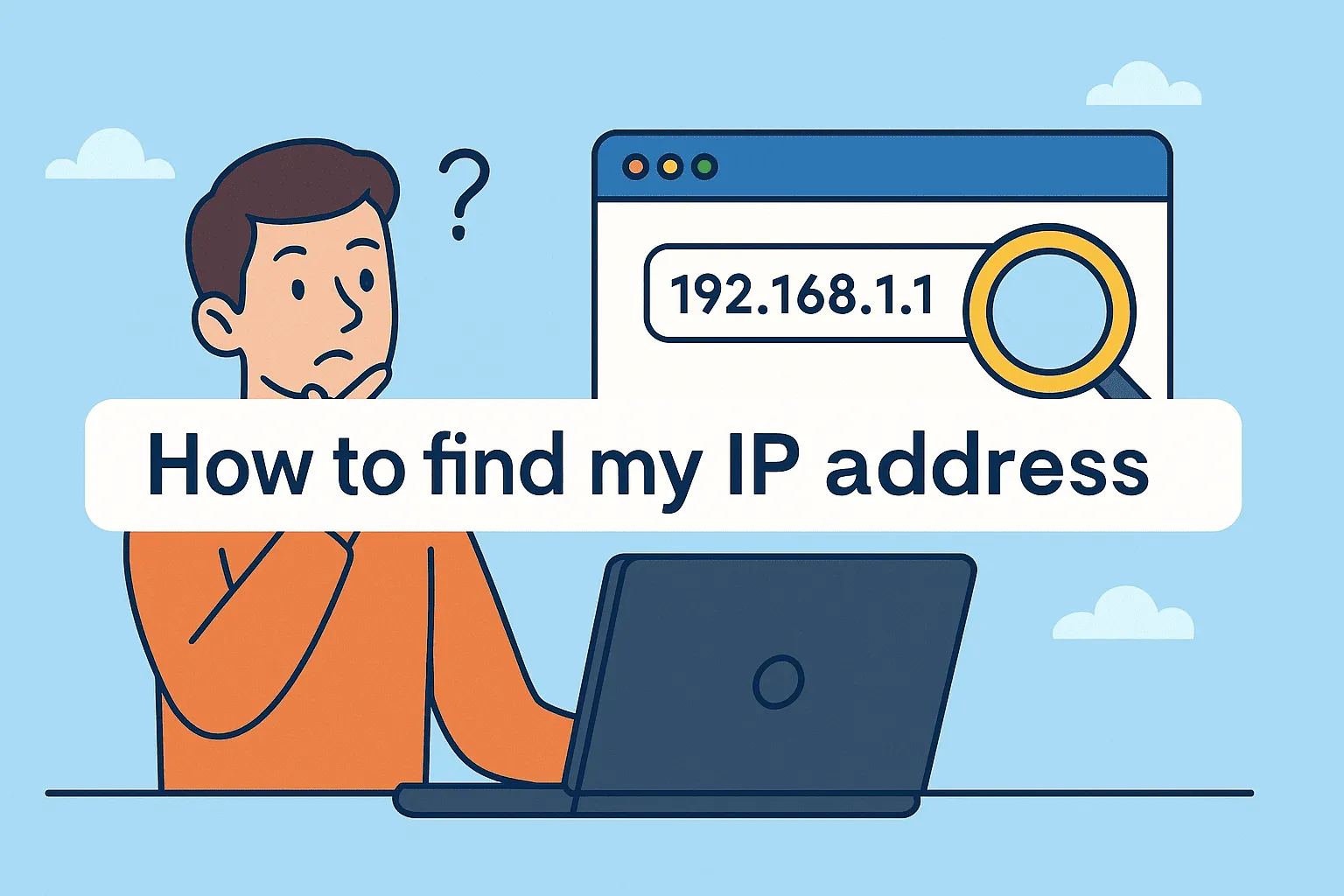
Wondering how to input an IP address in a browser? You type the IP in the address bar at the top of your web browser and press Enter. For example, entering http://192.168.1.1 takes you to your router login page if it’s correct. That’s the short answer many people are searching for, and the process works the same on Chrome, Edge, Safari, or Firefox.
If you’re asking how to input an IP address in a browser because a website won’t load, the solution is straightforward. Just replace the domain name (like google.com) with its numerical IP address. This bypasses DNS and connects you directly. For IPv4, type something like http://142.250.190.14. For IPv6, remember to use square brackets like http://[2400:cb00:2048:1::c629:d7a2]. That’s it, your browser will try to connect to that server.
So, how to input an IP address in a browser step by step?
- Open your browser.
- Click on the address bar.
- Type the IP with
http://orhttps://. - For IPv6, put the address inside brackets.
- Press Enter.
If the IP belongs to a device or server with a web interface, you’ll immediately see a page load, sometimes a router login screen, sometimes the actual website.

Now, you may wonder why people even ask how to input an IP address in a browser. The reasons are many. In Kenya, most users do this to log into their Safaricom router at 192.168.8.1, or their Faiba router at 192.168.1.1. IT professionals use it for server checks. And sometimes, when DNS is down, typing the IP directly is the fastest way to confirm if a site is working.
But how to input an IP address in a browser successfully depends on avoiding common mistakes. Don’t use commas instead of dots. Don’t forget the square brackets for IPv6. And don’t expect every IP to load a page; many IPs only handle background communication and won’t display anything in a browser.
Troubleshooting also comes into play when you ask how to input an IP address in a browser. If nothing loads, check if the IP is correct. You can run ping 192.168.1.1 in Command Prompt (Windows) or Terminal (Mac/Linux) to test if the address is alive. If it responds but doesn’t open in the browser, the device may not have a web page. If it doesn’t respond at all, your computer isn’t connected to that device or network.
A practical Kenyan example: When setting up Starlink internet, you enter the kit’s default IP in your browser to configure it. For Safaricom’s home routers, the default page opens at 192.168.8.1. For Zuku, it’s often 192.168.0.1. Without typing the IP correctly, you won’t reach the settings page. That’s why knowing how to input an IP address in a browser is an essential skill for anyone handling Wi-Fi or networks.
Another thing to note is that how to input an IP address in a browser may not always show you the same page as the website’s domain name. For instance, typing Google’s IP might open a blank or redirected page, because Google expects you to use its domain. This is common with big websites that use multiple servers and load balancers.
At the end of the day, how to input an IP address in a browser is about accuracy. Type the address correctly, use the right format, and hit Enter. It’s a small trick but very powerful in diagnosing network issues, accessing routers, or bypassing DNS failures.


Leave a Comment
Your email address will not be published. Required fields are marked *